Apps management
Nextcloud apps can enhance, customize, or restrict the features and experience available to you and your users on the Nextcloud server. In addition to built-in apps such as Files, Activity, and Photos, other apps such as Calendar, Contacts, and Talk can further expand its functionality.
After installing the Nextcloud server, you might want to consider enabling, disabling, or restricting some apps for specific groups, depending on your needs and those of your users.
Apps
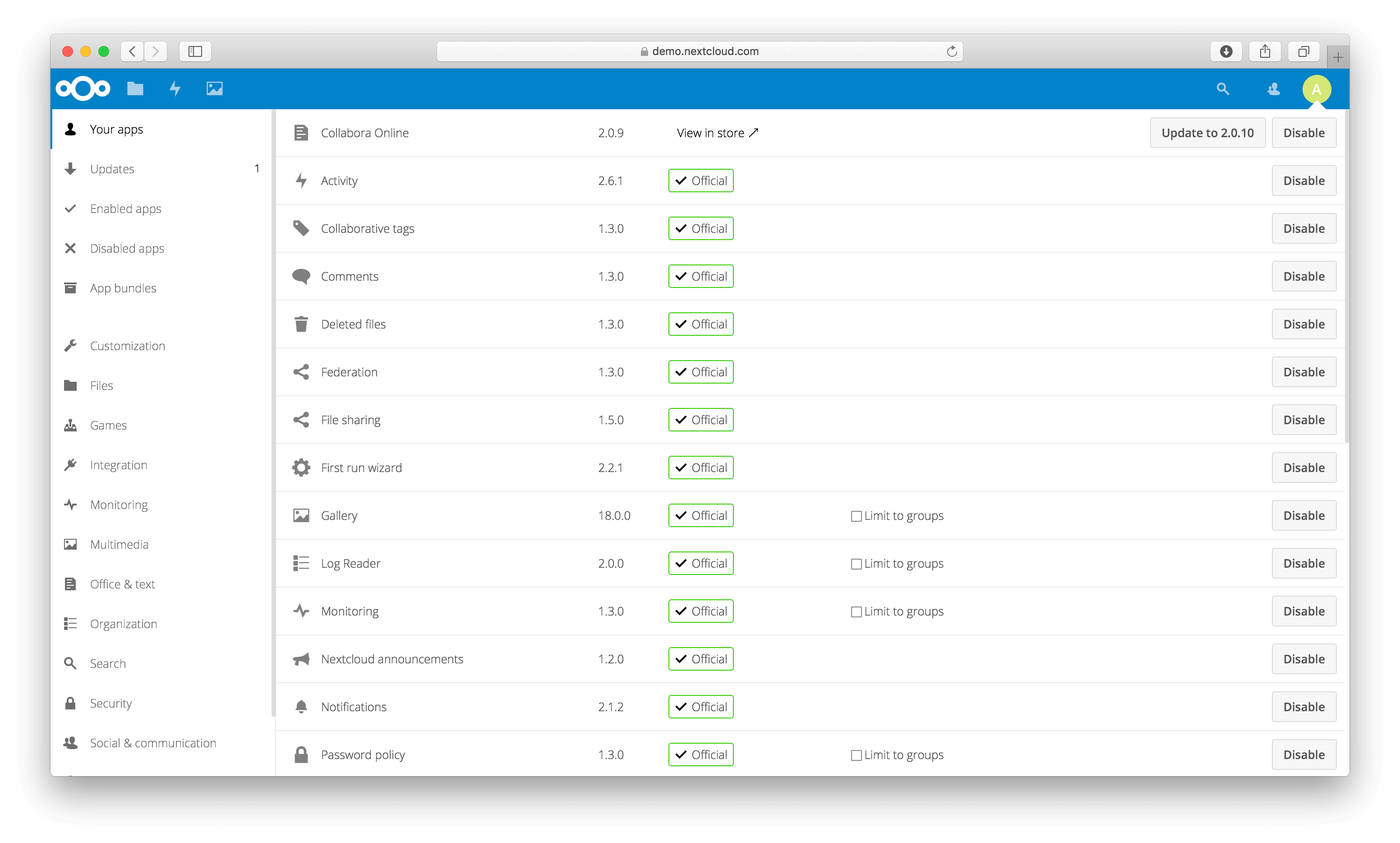
During the Nextcloud server installation, some apps are enabled by default. To see which apps are enabled go to your Apps page.
Those apps are supported and developed by Nextcloud GmbH directly and have a Featured tag.
Note
Your Nextcloud server needs to be able to communicate with https://apps.nextcloud.com,
https://ltd[1-3].nextcloud.com, https://garm[1-5].nextcloud.com to list and download
apps. Please make sure to allow these hosts in your firewall or proxy if necessary.
Note
To get access to work-arounds, long-term-support, priority bug fixing and custom consulting for supported apps, contact Nextcloud GmbH.
Note
If you would like to develop your own Nextcloud app, you can find out more information in our developer manual.
All apps must be licensed under AGPLv3+ or any compatible license.
Managing apps
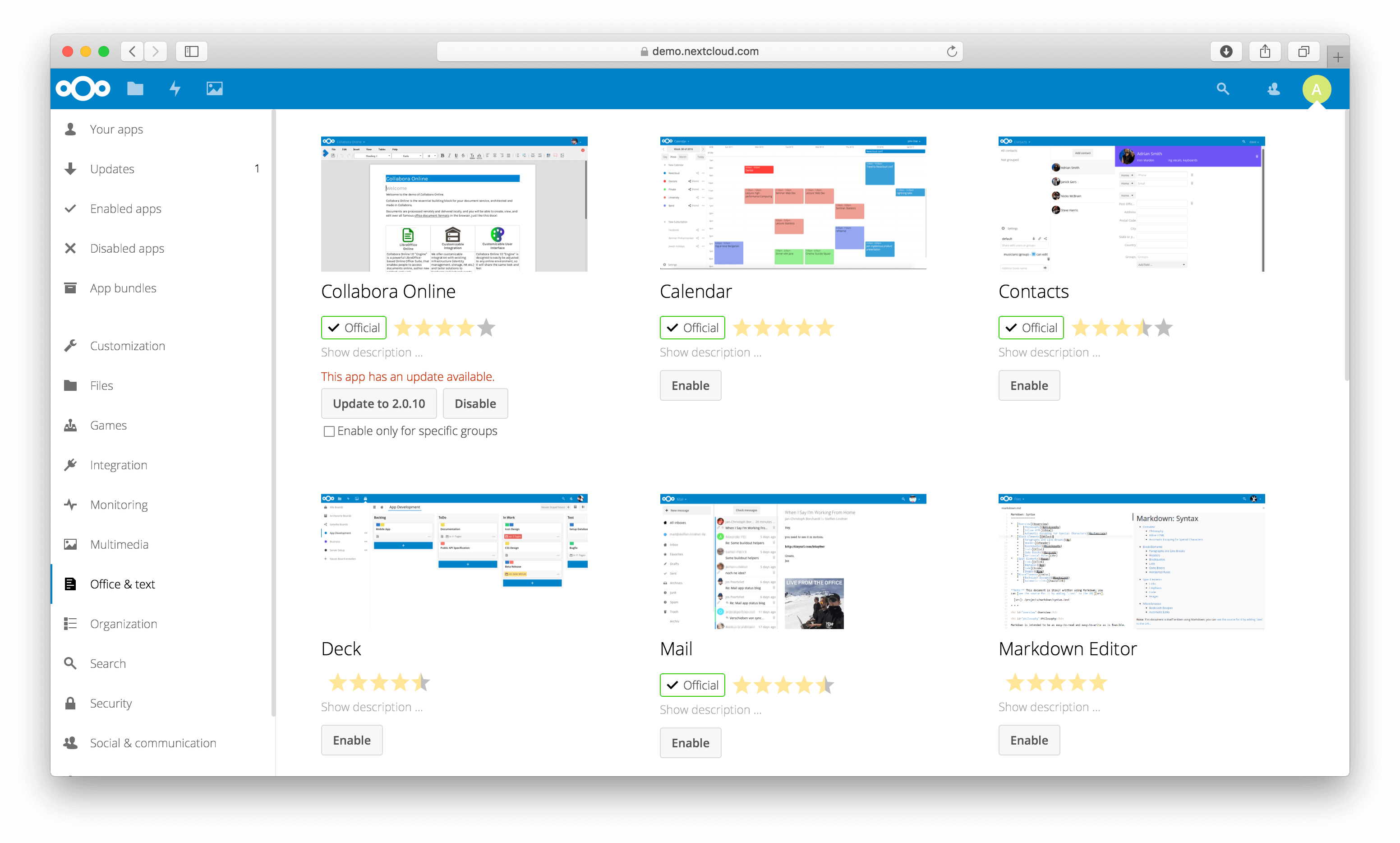
You will see which apps are enabled, disabled and available. You’ll also see additional app bundles and filters, such as Customization, Security and Monitoring for finding more apps quickly.
On the Apps page, you can enable or disable applications. Some apps have
configurable options on the Apps page, such as Enable only for specific
groups, but mainly they are enabled or disabled here, and are configured in
your Nextcloud settings (admin and/or user-settings) or in the config.php.
Select an app to view its description and available configuration options. Clicking the Enable button will enable the app. If the app is not part of the Nextcloud installation, it will be downloaded from the app store, installed and enabled.
App updates will also be offered to you on this page. Simply click on the Update button to update a specific app or use the Update all button on top of the page to update all apps.
Note
Beta releases: You can also install beta releases of apps directly from here by switching your Nextcloud to the beta channel in the admin overview.
Update notifications
The default updatenotification app sends administrators notifications about available
app and Nextcloud updates. Moreover, since Nextcloud 29, this app also allows to notify
users about updated apps and the changes that are included in the update. This notification
is enabled by default if the app provides a changelog.
To disable user notifications use:
occ config:app:set --type boolean --value="false" updatenotification app_updated.enabled
By default. when using the guests app, guest users are not notified. To enable notifications for them use:
occ config:app:set --type boolean --value="true" updatenotification app_updated.notify_guests
Managing apps with occ
In addition to managing apps via the web interface, administrators can enable or disable apps with the occ command.
To enable an app, use the following command:
occ app:enable <app-id>
For example, to enable the “files” app, run:
occ app:enable files
To enable the app for specific groups, use the --groups option:
occ app:enable files --groups=admin
This command enables the “files” app only for the “admin” group.
To disable an app, use:
occ app:disable <app-id>
Using private API
If a third-party app uses private APIs instead of public APIs, installation
fails when 'appcodechecker' => true, is set in config.php.
Using custom app directories
Use the apps_paths array in config.php to set any custom apps directory
locations. The key path defines the absolute file system path to the app
folder. The key url defines the HTTP web path to that folder, starting at
the Nextcloud web root. The key writable indicates if a user can install apps
in that folder.
Example: To ensure that the default /apps/ folder only contains apps shipped
with Nextcloud, follow this example to set up an /extra-apps/ folder which
will be used to store any additional apps you install:
"apps_paths" => [
    [
            "path"     => OC::$SERVERROOT . "/apps",
            "url"      => "/apps",
            "writable" => false,
    ],
    [
            "path"     => OC::$SERVERROOT . "/extra-apps",
            "url"      => "/extra-apps",
            "writable" => true,
    ],
],
Danger
Make sure that the values you choose for path and url for any custom
apps directories do not conflict with directories which already exist in your Nextcloud
Server root (installation directory).
Tip
Apps paths can be located outside the server root. However, for any
path outside the server root, you need to create a symbolic link in the server
root that points url to path. For instance, if path is
/var/local/lib/nextcloud/extra-apps, and url is /extra-apps, then
you would use the command ln to create the symbolic link like this:
ln -sf /var/local/lib/nextcloud/extra-apps ./extra-apps
Configuring the app store timeout
The timeout for requests to fetch app store metadata can be configured with the
appstore-timeout app setting. The value is specified in seconds. This setting is
configured with occ and is not a config.php parameter.
For example, to set the timeout to 180 seconds:
occ config:app:set settings appstore-timeout --value=180
The default timeout is 120 seconds. To restore the default, remove the custom setting:
occ config:app:delete settings appstore-timeout
Changed in version 33.0.0: The default app store request timeout was increased from 60 to 120 seconds
and can be configured with occ.
Using a self-hosted app store
This section explains how to enable installation of apps from a self-hosted app store. At least one of the configured apps directories must be writable.
To enable a self-hosted app store:
Set the
appstoreenabledparameter totrue.This parameter is used to enable the app store in Nextcloud.
Set the
appstoreurlto the URL of your Nextcloud app store.This parameter is used to set the HTTP path to your self-hosted Nextcloud app store.
"appstoreenabled" => true,
"appstoreurl" => "https://my.appstore.instance/v1",
By default the app store is enabled and configured to use https://apps.nextcloud.com/api/v1
as the app store URL. Nextcloud will fetch apps.json and categories.json from there. To
use the defaults again, remove the appstoreenabled and appstoreurl parameters from the
configuration.
Example: If categories.json is available at https://apps.nextcloud.com/api/v1/categories.json
the app store URL is https://apps.nextcloud.com/api/v1.